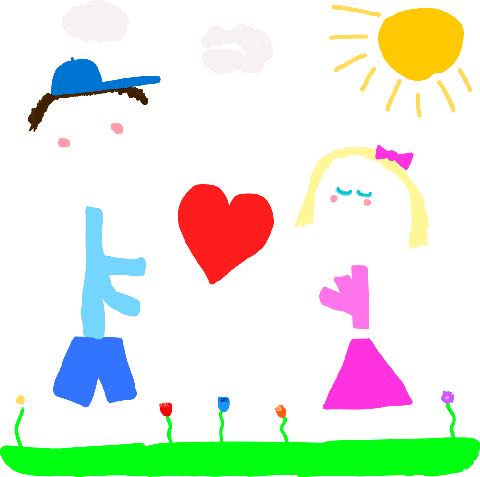

How the drawing widget works
- Pair with your partner. Install Lovio, then one of you shares a 6-character invite code and the other enters it.
- Add the Canvas widget. Your partner adds Lovio's Canvas widget to their Home Screen (you'll want one too, so they can draw back). Step-by-step widget guide.
- Draw in Lovio. Open the canvas, pick a colour and draw whatever you like.
- Send it. Your doodle shows up on their Canvas widget, and Lovio lets them know there's something new to see.
About timing: your phone and your partner's phone decide how often widgets refresh, so a new drawing may not appear on the widget the very same second. If one seems stuck, opening Lovio is a good first step.
Why a doodle beats a text sometimes
A message asks for a reply. A drawing on someone's Home Screen doesn't — it just sits there being nice. That's what makes the Canvas widget good for the in-between moments: a busy afternoon, the morning after a disagreement, the hours when you're in different time zones and one of you is asleep. They'll see it when they pick up their phone, and it'll still be there the next time.
What couples actually draw
Ideas are the hardest part, so here are a few to start with:
- A morning message: a sun and a coffee cup, or just "gm" with a heart.
- A countdown: the number of days until you see each other, crossed out one at a time.
- An inside joke: the thing only the two of you will get.
- A tiny portrait: of them, of you, of your pet — the worse, the better.
- A plan: a pizza slice and a question mark for tonight.
We've collected more in 60 drawing ideas for couples, sorted by mood and effort.
Pairs well with
The Canvas widget sits nicely next to the Memories widget, which shows your latest shared photo, and the Days Together counter. See all of Lovio's couples widgets. If you live apart, the drawing widget is one of the easiest ways to stay present in each other's day — more on that in Lovio for long-distance couples.